


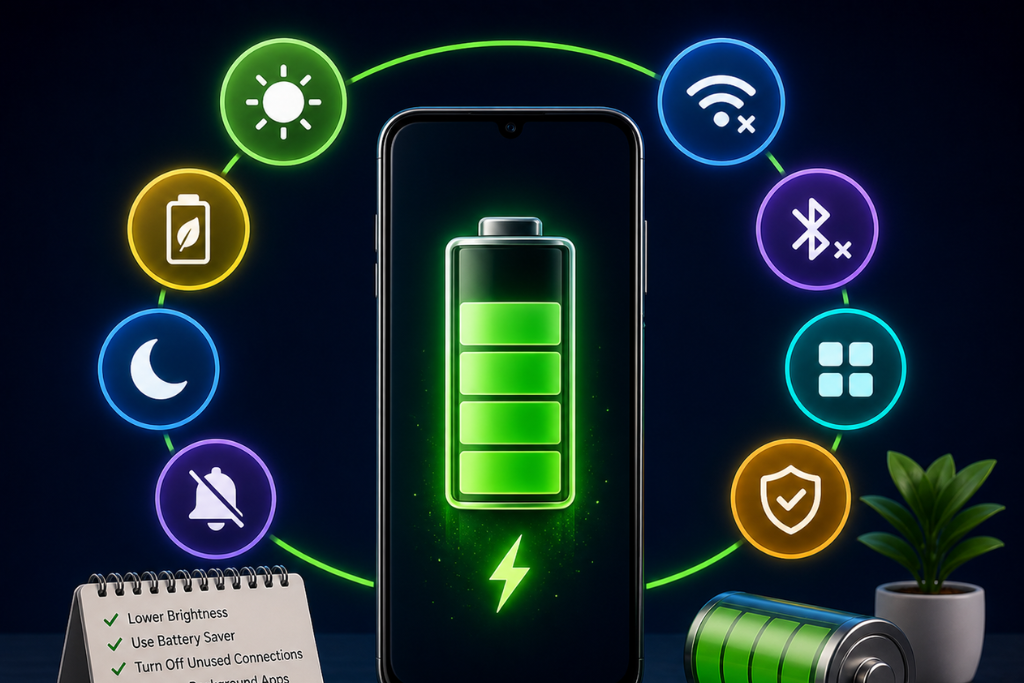
If your Android phone battery drains faster than expected, you are not alone. Even the latest smartphones can lose battery quickly due to multitasking, background apps, and high performance features.
The good news is that with a few smart adjustments, you can significantly extend your battery life without compromising performance.
Use Built-in Battery Saver Mode
Instead of relying heavily on third party battery saver apps, modern Android devices already include powerful built-in tools like Battery Saver and Adaptive Battery.
These features:
- Limit background activity
- Reduce performance slightly to save power
- Optimize app usage based on your habits
Go to: Settings > Battery > Battery Saver / Adaptive Battery
Tip: Use third party apps carefully, as some may actually drain battery in the background.
Turn off Wi-Fi & Bluetooth
When it comes to manual intervention to save some battery juice, you can start with disabling Wi-Fi & Bluetooth services when not in use. If you are one of those users who keep these two services active all the time, then it’s going to consume a lot of battery and device resources. When keep enabled all the time, both Wi-Fi and Bluetooth look for devices near around to connect with. It is also not safe from a security point of view as if it auto connects to unsafe public Wi-Fi network or so on. You can switch to taking calls direct from device sometimes if you are extensively using hands-free connected with Bluetooth on your device.
Manage Screen Time Out & Brightness
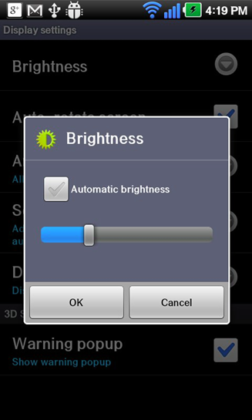
This is another basic step that can help you save some battery juice instantly. Keeping screen time out longer prove unnecessary when you are not using your device actively as it consumes lot battery on your device. You can keep screen time out shorter in order to save some battery. Alternatively, you can instantly press the power button to turn your device screen off. Apart of it, keeping screen brightness low can also help you save some battery. You can use the auto brightness feature on your device to save some battery too. Both these simple steps will help you save your device resources instantly.
Turn Off Apps & Services Running in the Background
Many apps & services not only consume device resources when used actively but it also consumes device resources while running in the background. These apps & services keep on running in the device background to provide you latest notifications related to it. Amongst these apps & services remain unnecessary items as well which consume device resources for no good reasons. Thus, you can consider disabling all such apps & services running in the background. To stop such apps, go to Settings > Application Manager or Applications > Running Apps and stop them instantly to save battery life.
Turn off Animation & Live Wallpapers
Animations and live wallpapers on your device enhance the aesthetic value of your device. They may look good but these features consume lot of device resources including battery life. Thus, you can manage or disable them to save some battery life. To stop live wallpapers, simply select Wallpapers in device Settings > Display > Wallpapers instead of Live Wallpapers.
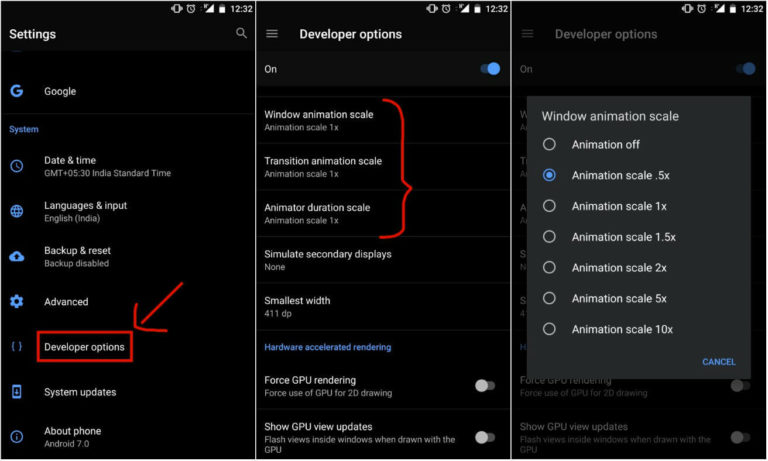
To disable animations, you need to first activate Developer Options on your device. To do this, go to Settings > About Phone > Build Number and tap it multiple times until it displays message that the Developer Options is enabled. Now head back to Settings > Developer Options and turn off three options called Window Animation Scale, Transition Animation Scale, and Animator Duration Scale. Remember to leave Developer Options enabled as disabling it will bring animation settings to its default state.
Keep Your Phone Updated
System updates often include battery optimization improvements.
Always ensure:
- Android OS is updated
- Apps are updated from the Play Store
Conclusion:
Despite the fact, smartphone batteries are more efficient and powerful than ever before still it gets drain over time due to extensive use of the device. It becomes important to follow certain steps to save your battery juice if you are multi tasker and use your device extensively. You can follow above mentioned steps to do that. By applying these simple but effective strategies, you can extend your battery life, improve performance, and reduce the need for frequent charging.
Frequently Asked Questions
You can extend battery life by enabling Battery Saver mode, reducing screen brightness, limiting background apps, and turning off unused features like Wi-Fi and Bluetooth.
Some apps help, but built-in Android battery optimization features are usually more effective and safer.
The biggest battery drainers are:
1. Screen brightness
2. Background apps
3. Location services
4. Gaming and heavy apps
No, modern smartphones are designed to handle overnight charging. However, avoiding constant full charges can help long term battery health.
Yes, especially on OLED/AMOLED screens, Dark Mode can reduce battery consumption significantly.
